

Projects
A project is the top-level container for a radio operation. All stations, media, schedules, and team members belong to a project.
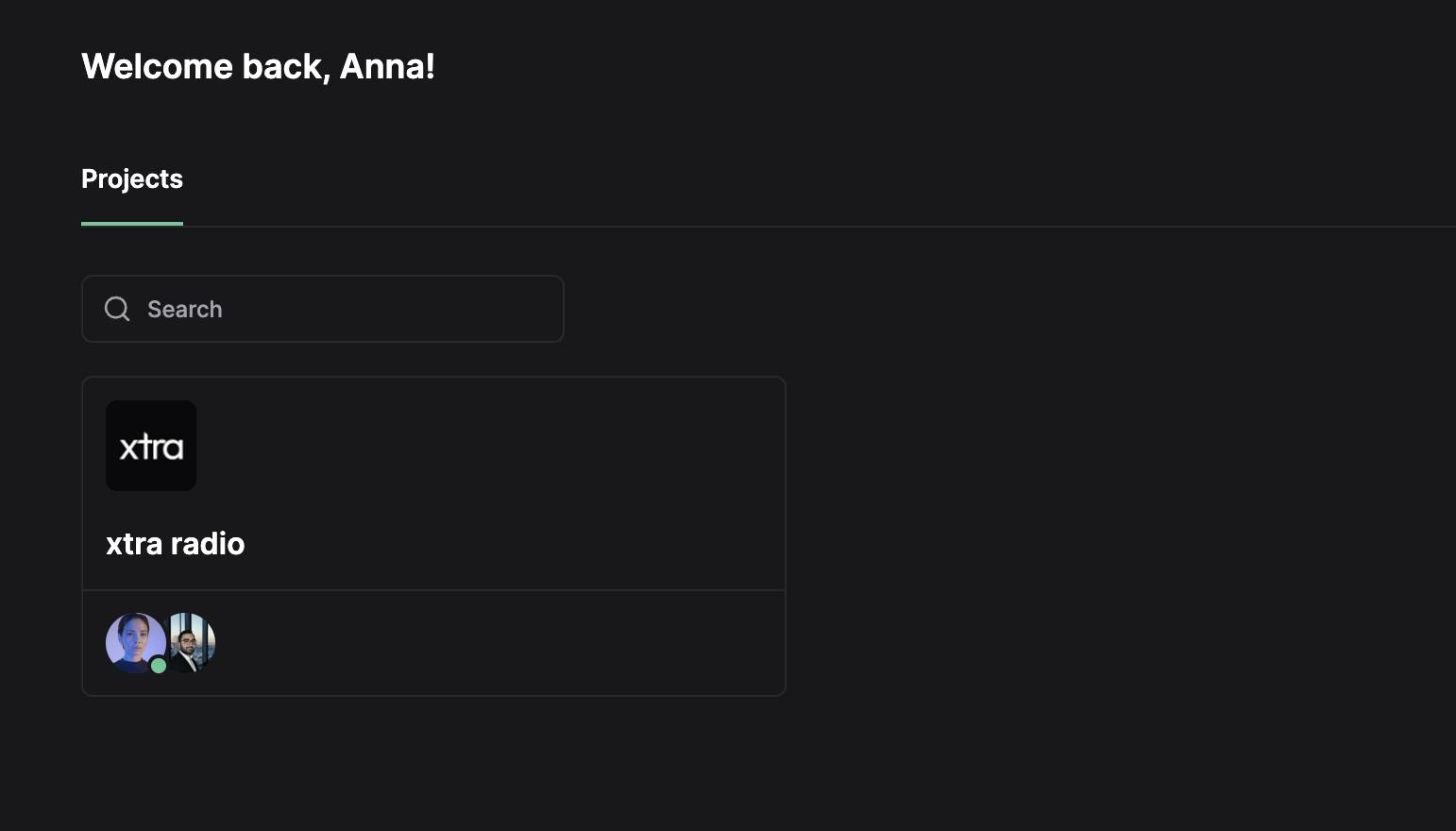
Project Hierarchy
Project
├── Stations (1 or more)
├── Media Library (shared across stations)
├── Team Members
└── Project Settings
Projects group related stations under one organization. A radio network might use one project for all its stations, or separate projects for distinct brands.
Create a Project
- Click the project dropdown in the sidebar header.
- Select Create Project.
- Enter a project name.
- Click Create.
The new project opens automatically. Add stations and invite team members to begin.
Project Settings
Access project settings via Settings in the sidebar when no station is selected.
| Setting | Description |
|---|---|
| Name | Display name shown in the project selector |
| Avatar | Icon displayed in the sidebar and project list |
| Timezone | Default timezone for scheduling across all stations |
| Maintenance Window | Scheduled downtime period for system updates |
Change Project Settings
- Navigate to Settings (project level).
- Select the General tab.
- Modify the desired fields.
- Click Save.
Maintenance Window
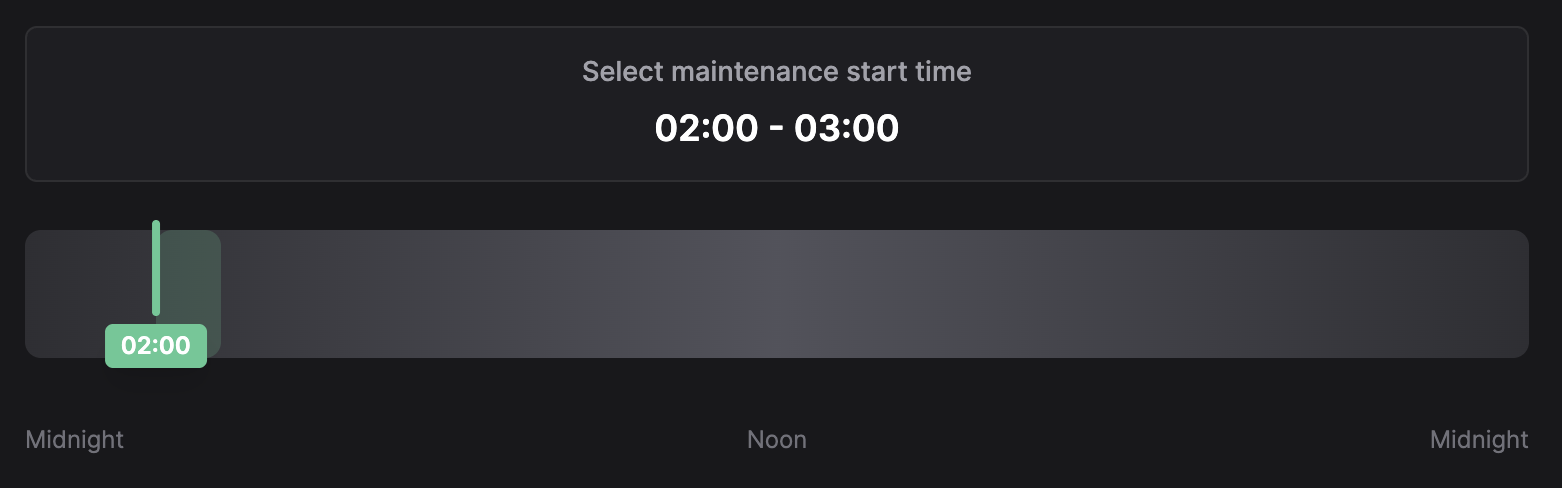
The maintenance window defines a one-hour period when the system may perform automated tasks such as station restarts for updates.
Configuration
| Setting | Description |
|---|---|
| Enabled | Toggle maintenance window on or off |
| Start Time | Hour when the window begins (00:00 - 23:00) |
| Duration | Fixed at 1 hour |
Set the Maintenance Window
- Navigate to Settings (project level).
- Locate the Maintenance Window section.
- Enable the toggle.
- Drag the timeline slider to select the start hour.
- The time range displays above the slider (e.g., "02:00 - 03:00").
Timeline Interface
The 24-hour timeline displays:
- A gradient background representing night (darker) and day (lighter) periods
- A draggable marker indicating the start time
- Labels: Midnight | Noon | Midnight
Recommendations
- Schedule maintenance during low-listener hours (typically 02:00 - 05:00)
- The window applies to all stations in the project
- Stations may briefly restart during this period for updates
See Station Updates for manual update options.
Switch Projects
- Click the project dropdown in the sidebar header.
- Select the target project from the list.
The interface loads the selected project context. All navigation (Media, Studio, Planner) operates within this project.
Delete a Project
Deleting a project removes all stations, media, schedules, and team memberships permanently.
- Navigate to Settings (project level).
- Select the Danger Zone tab.
- Click Delete Project.
- Type the project name to confirm.
- Click Delete.
This action cannot be undone. Export any needed data before deletion.
Related
- Stations - Create and configure broadcast endpoints
- Station Settings - Configure station identity and updates
- Team Management - Invite users and assign permissions