

Cartwall
The Cartwall provides instant access to sound effects, jingles, and drops during broadcast. Trigger sounds with a single click.
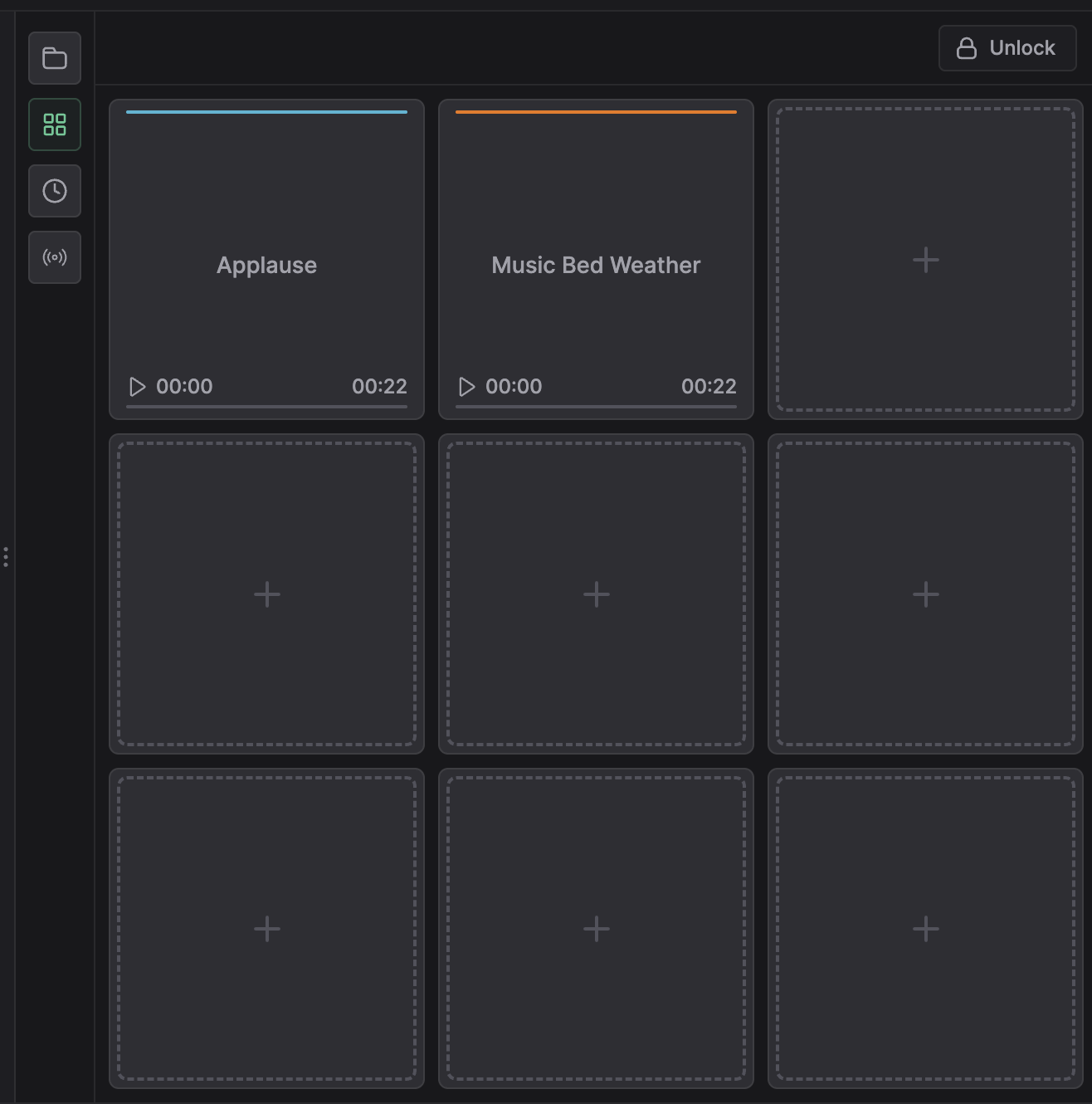
Layout
The Cartwall displays as a grid of cells. Each cell holds one audio item.
Default configuration:
- 4 rows x 8 columns (32 cells)
- Customizable grid size via settings
- Scrollable for additional pages
Adding Sounds
Populate cartwall cells from the Media Library.
- Click the Edit button to enter edit mode.
- Open the Media Library tab.
- Drag an audio file to an empty cell.
- Release to assign the sound.
The cell displays the track title. Long titles truncate with ellipsis.
Cell Colors
Assign colors to organize your cartwall visually.
- Enter edit mode.
- Right-click a populated cell.
- Select Set Color.
- Choose from the color palette.
Common organization schemes:
- Jingles: Blue
- Sound effects: Green
- Drops/liners: Orange
- Beds: Purple
Playing Sounds
Trigger sounds by clicking cartwall cells.
- Click a populated cell.
- The sound plays immediately.
- The cell shows playback progress.
Multiple sounds can play simultaneously. Each triggered sound mixes into the cartwall output channel.
Stopping Sounds
Stop a playing sound:
- Click the cell again to stop immediately
- Wait for the sound to finish naturally
- Click the stop-all button to halt all cartwall audio
Edit Mode
Edit mode allows reorganization without accidental triggers.
Enter edit mode:
- Click the Edit button (lock icon).
- The grid border changes to indicate edit mode.
- Clicks no longer trigger playback.
In edit mode:
- Drag cells to swap positions
- Right-click for context menu options
- Delete sounds from cells
- Assign colors
Exit edit mode by clicking the Edit button again.
Reorganizing Cells
Rearrange your cartwall layout in edit mode.
- Enter edit mode.
- Drag a cell to a new position.
- The cells swap places.
- Exit edit mode to save.
Changes persist across sessions and are user-specific.
Cartwall Mixer Channel
The cartwall has a dedicated mixer channel. All triggered sounds combine into this single output.
Adjust cartwall volume:
- Open the Mixer tab.
- Locate the Cartwall fader.
- Drag to set the level.
The cartwall channel mixes with track channels in the master output.
Keyboard Shortcuts
Trigger cartwall cells via keyboard for faster operation.
| Keys | Cells |
|---|---|
| 1-8 | Row 1 |
| Q-I | Row 2 |
| A-K | Row 3 |
| Z-, | Row 4 |
Configure custom shortcuts in Studio Settings > Keyboard.
Multiple Pages
For more than 32 sounds, use multiple cartwall pages.
- Click the page indicator to switch pages
- Each page maintains its own layout
- Page assignments persist per user