

Stations
A station represents a single broadcast endpoint within a project. Each station has its own stream configuration, schedule, and content queue.
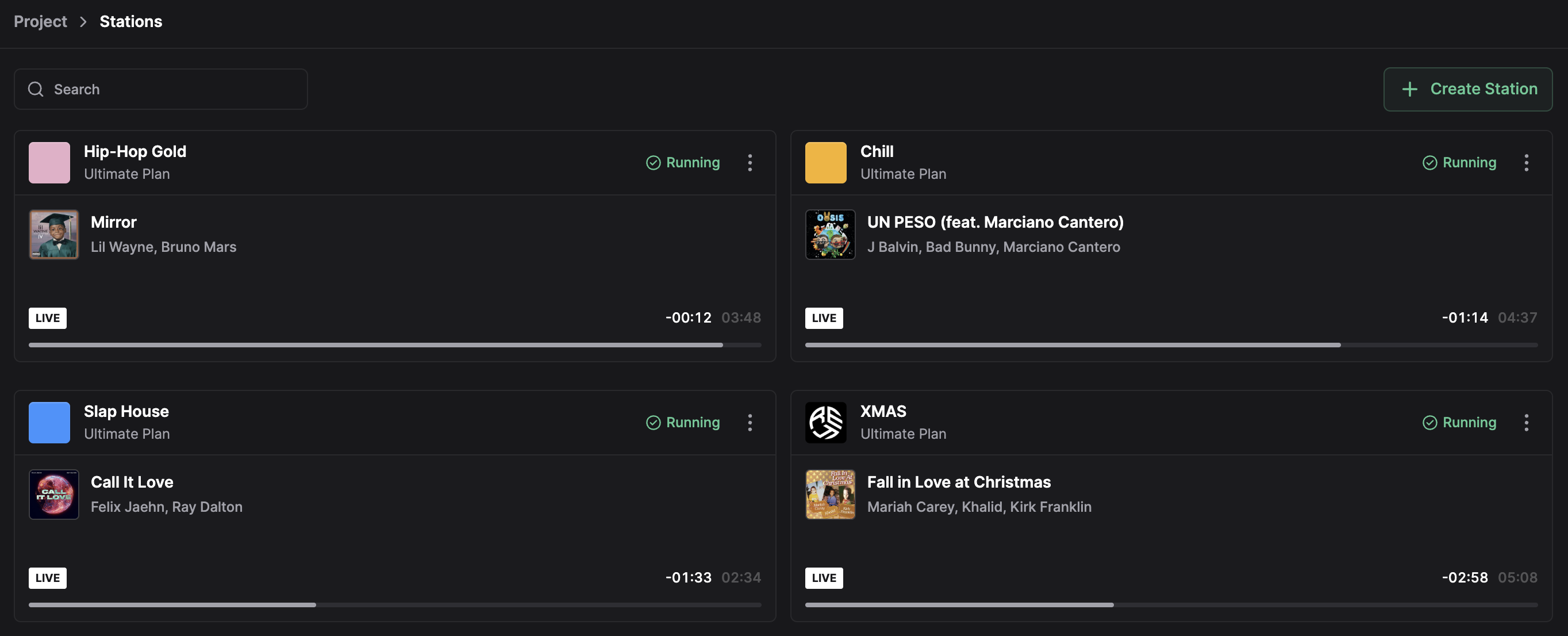
Station Types
| Type | Description | Use Case |
|---|---|---|
| Standard | Full playout with scheduling and automation | Main broadcast stations |
| Relay | Restreams an external audio source | Simulcasting, network feeds |
| Stage | Live broadcasting without automation | Live events, DJ sets |
Create a Station
- Navigate to Settings in the sidebar (project level).
- Select the Stations tab.
- Click Add Station.
- Choose the station type.
- Enter station name and initial configuration.
- Click Create.
The station appears in the sidebar station list.
Station Status
Stations have three possible states:
| Status | Indicator | Description |
|---|---|---|
| Running | Green | Station is active and streaming |
| Stopped | Gray | Station is inactive |
| Unavailable | Red | Station cannot connect to streaming server |
The status indicator displays next to the station name in the sidebar.
Start a Station
- Select the station from the sidebar.
- Open the Studio.
- Click Start in the top bar.
The station begins streaming to configured encoders. Status changes to Running.
Stop a Station
- Open the Studio for the running station.
- Click Stop in the top bar.
- Confirm the action.
Active streams disconnect. Status changes to Stopped.
Switch Stations
- Click a station in the sidebar station list.
- The interface loads the selected station context.
All features (Media, Studio, Planner, Settings) operate within the selected station.
Delete a Station
- Navigate to Settings → Stations.
- Click the context menu on the target station.
- Select Delete.
- Confirm by typing the station name.
Deleting a station removes its schedules, encoder configurations, and history. Media files in the shared library remain.
Related
- Projects - Project-level organization
- Station Settings - Configure station behavior
- Encoders - Set up streaming connections