

Timing Types
Timing types control when items start in a sequence or rotation. Each item has a timing type that determines its relationship to surrounding items.
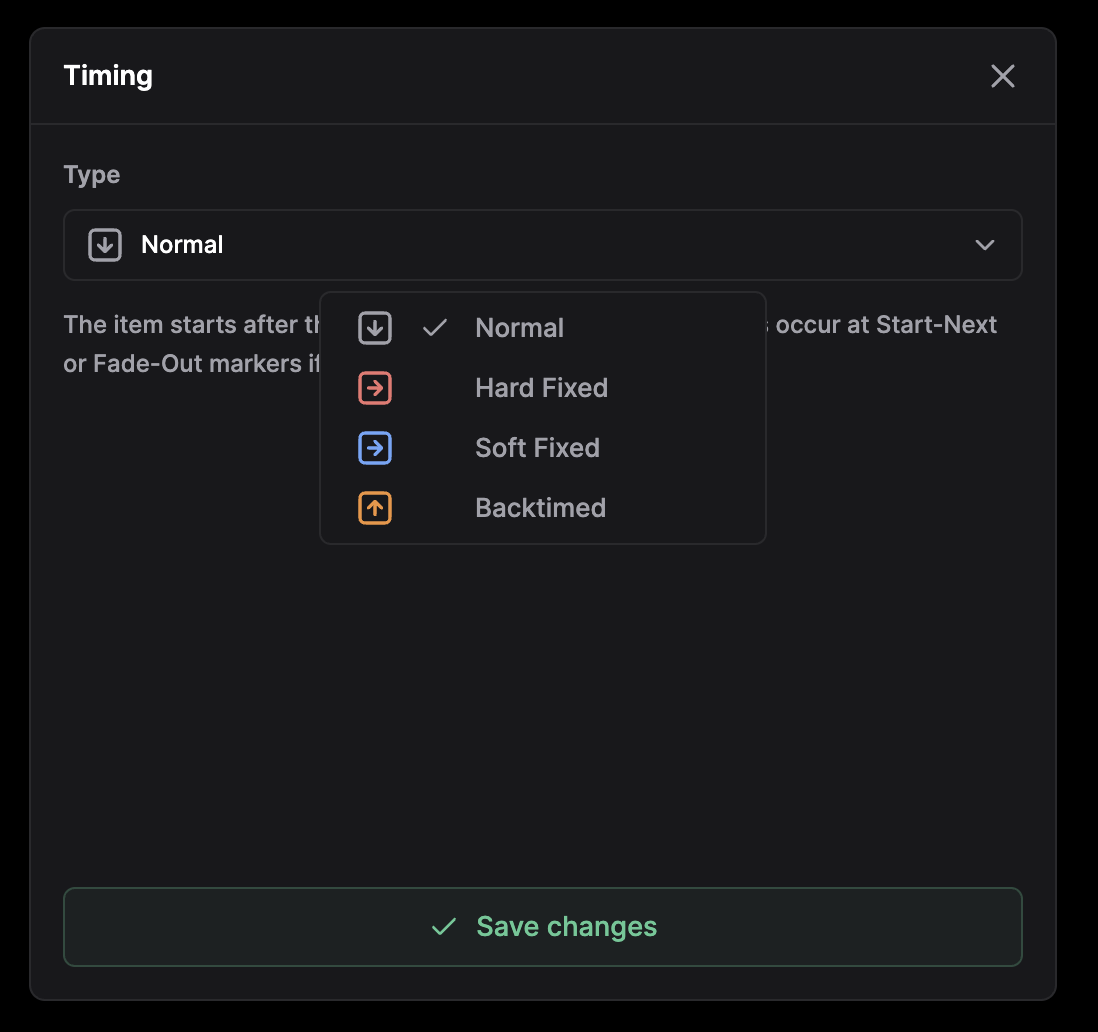
Overview
| Type | Color | Behavior | Interrupts Previous |
|---|---|---|---|
| Normal | Gray | Starts after previous item ends | No |
| Hard Fixed | Red | Starts at exact time | Yes |
| Soft Fixed | Blue | Starts at target time, waits for previous | Conditional |
| Backtimed | Orange | Calculated backwards from next fixed item | No |
When to Use Each Type
| Type | Use Case |
|---|---|
| Normal | Continuous music programming with no time constraint |
| Hard Fixed | Legal requirements, news at the top of the hour, scheduled ad breaks |
| Soft Fixed | Targeted transitions that should align with a natural mix point |
| Backtimed | Jingles or beds that must end at :00, news lead-ins, top-of-hour timing |
Normal
The default timing type. Items start when the previous item completes.
Behavior:
- Waits for the previous item to finish
- Respects cue points (Mix or Fade Out markers) on the previous item
- No time guarantee
Example:
| Time | Item | Duration |
|---|---|---|
| 00:00 | Song A | 3:30 |
| 03:30 | Song B (Normal) | 4:00 |
| 07:30 | Song C (Normal) | 3:15 |
Hard Fixed
Items start at an exact time, interrupting any currently playing content.
Behavior:
- Starts precisely at the configured time
- Cuts off the previous item if still playing
- Guarantees the scheduled start time
Use cases:
- News at the top of the hour
- Scheduled ad breaks
- Time-critical announcements
Configuration:
| Parameter | Description |
|---|---|
| Fixed Time | Start time within the hour (MM:SS) |
Soft Fixed
Items target a specific time but wait for the previous item to complete. A configurable time window limits how late the item can start.
Behavior:
- Aims to start at the configured time
- Waits for the previous item to finish
- If the time window expires, the previous item is interrupted
Configuration:
| Parameter | Description |
|---|---|
| Fixed Time | Target start time (MM:SS) |
| Time Window | Maximum allowed delay (toggle + time value) |
With Time Window
The window defines the maximum delay. When the window expires, the previous item is interrupted.
Without Time Window
When the time window toggle is disabled, the soft fixed constraint is relaxed. The item starts after the previous item finishes regardless of delay.
Backtimed
Items are calculated backwards to end when the next fixed-time item starts.
Behavior:
- Start time calculated from the next Hard Fixed or Soft Fixed item
- Multiple consecutive backtimed items form a chain, calculated backwards
Use cases:
- Jingles before news
- Music that must end at a specific time
- Filling gaps before fixed content
Timing and Cross-Fading
Timing types determine whether a transition can cross-fade or must cut.
| Type | Transition Behavior |
|---|---|
| Normal | Cross-fades at the previous item's Mix or Fade Out cue point |
| Hard Fixed | Cuts the previous item at the exact start time, no cross-fade |
| Soft Fixed | Cross-fades when starting within the window; cuts if the window expires |
| Backtimed | Cross-fades into the following fixed item using its cue points |
Hard Fixed timing guarantees the start time and overrides cross-fading. Soft Fixed preserves the cross-fade when the previous item finishes inside the time window.
Timing Modal
The timing modal appears when clicking the timing icon on a sequence entry or rotation item.
- Select the timing type from the dropdown (with icon and description)
- For fixed types: enter the target time
- For Soft Fixed: toggle and configure the time window
- Save changes
In the rotation view, timing changes are saved via API and the rotation data refreshes automatically. In the sequence editor, changes apply to the sequence template.
Timing Indicators
The rotation view highlights potential timing conflicts:
| Indicator | Meaning |
|---|---|
| Will be interrupted | A Hard Fixed item will cut off this item |
| Will be skipped | Timing rules make this item impossible to play |
| Overplanned | Item extends past the hour boundary |
Related Topics
- Sequences - Create templates with timing rules
- Rotations - View calculated start times
- Week Planner - Assign sequences to time blocks