

Stations
A station represents a single broadcast endpoint within a project. Each station has its own stream configuration, schedule, and content queue.
Station Types
| Type | Description |
|---|---|
| Station | Full broadcasting station with planner, studio, and streaming |
| Stage | Preview/testing environment for configurations |
| Relay | Restreams an external audio source |
A Station is the standard broadcast endpoint with full playout and scheduling. A Stage previews configurations before they go live. A Relay forwards an existing external stream without local playout.
Create a Station
- Open Stations in the project sidebar
- Click Create Station
- Enter a station name, select a color, and optionally upload a logo
- Select a plan and billing interval (monthly or yearly)
- Review the cost summary, accept terms, and confirm the purchase
The station appears in the sidebar after creation.
Plans
Each station runs on a plan that determines available features and resource limits.
| Plan | Description |
|---|---|
| Basic | Automated playout and scheduling |
| Plus | Voicetracking, extended storage |
| Pro | Live broadcasting, audio processing |
| Ultimate | Full feature set, maximum capacity |
Plans are billed monthly or yearly. See Billing for details on changing plans and managing subscriptions.
Station Dashboard
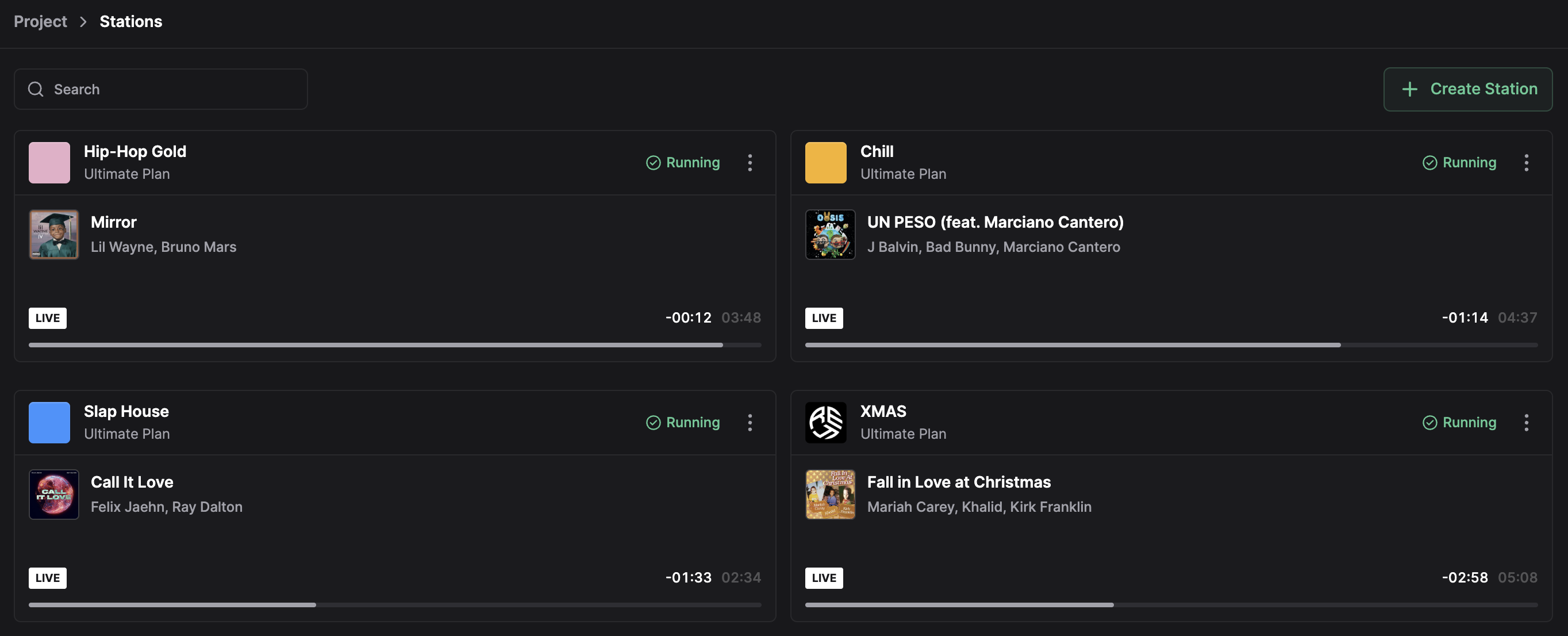
The station dashboard shows the live state of a station at a glance.
- Currently playing track
- Upcoming tracks from the rotation
- Maintenance alerts for pending operations
Station List Views
The station list supports two view modes.
| View | Description |
|---|---|
| Grid | Card layout with station color, logo, and status |
| Table | Row layout showing the currently playing track for each station |
Switch between views using the toggle above the station list.
Station Status
| Status | Indicator | Description |
|---|---|---|
| Running | Green | Station is active and streaming |
| Stopped | Gray | Station is inactive |
| Unavailable | Red | Station cannot start (billing or system issue) |
The status indicator displays next to the station name in the sidebar.
Billing Status
Stations also have a billing status that affects availability:
| Billing Status | Effect |
|---|---|
| Active | Normal operation |
| Pending | Station is being provisioned |
| Past Due | Payment failed, station at risk of suspension |
| Suspended | Station cannot be started until payment is resolved |
| Canceled | Station runs until the end of the billing period |
Power Control
Stations can be started, stopped, and restarted from the power button in the station header.
- Select the station from the sidebar
- Open the Studio
- Use the power button in the station header
The station connects to configured encoders when started and disconnects when stopped.
- Start and stop operations are queued and show progress while running
- A restart stops the station and starts it again in a single operation
- The
shouldBeRunningflag records user intent, so a station returns to its expected state after a system recovery
Release Channels
Each station runs on a release channel that controls which platform version it uses.
| Channel | Description |
|---|---|
| Stable | Production release for live broadcasting |
| Beta | Pre-release builds for early testing |
| Alpha | Experimental builds with the newest features |
Changing the release channel triggers a station restart. Use Stable for production stations and reserve Beta or Alpha for testing.
Maintenance Alerts
When a maintenance operation is pending, a notification appears on the station dashboard with the scheduled time. Stations may restart during the project maintenance window for platform updates.
The scheduled time follows the project maintenance window. See Projects to configure the maintenance window.
Switch Stations
Click a station in the sidebar station list. All features (Studio, Planner, Settings) operate within the selected station.
Cancel a Station
- Open the station Billing page
- Scroll to the Danger Zone section
- Click Cancel
- Confirm the cancellation
The station remains active until the end of the current billing period. A 7-day deletion grace period follows. Cancelled stations can be reactivated before the billing period ends via the banner on the billing page.
Cancelling a station removes its schedules, encoder configurations, and history. Media files in the shared library remain.
Related
- Projects - Project-level organization
- Billing - Plans, addons, and invoices
- Station Settings - Configure station behavior
- Encoders - Set up streaming connections