

Projects
A project is the top-level container for a radio operation. All stations, media, schedules, and team members belong to a project.
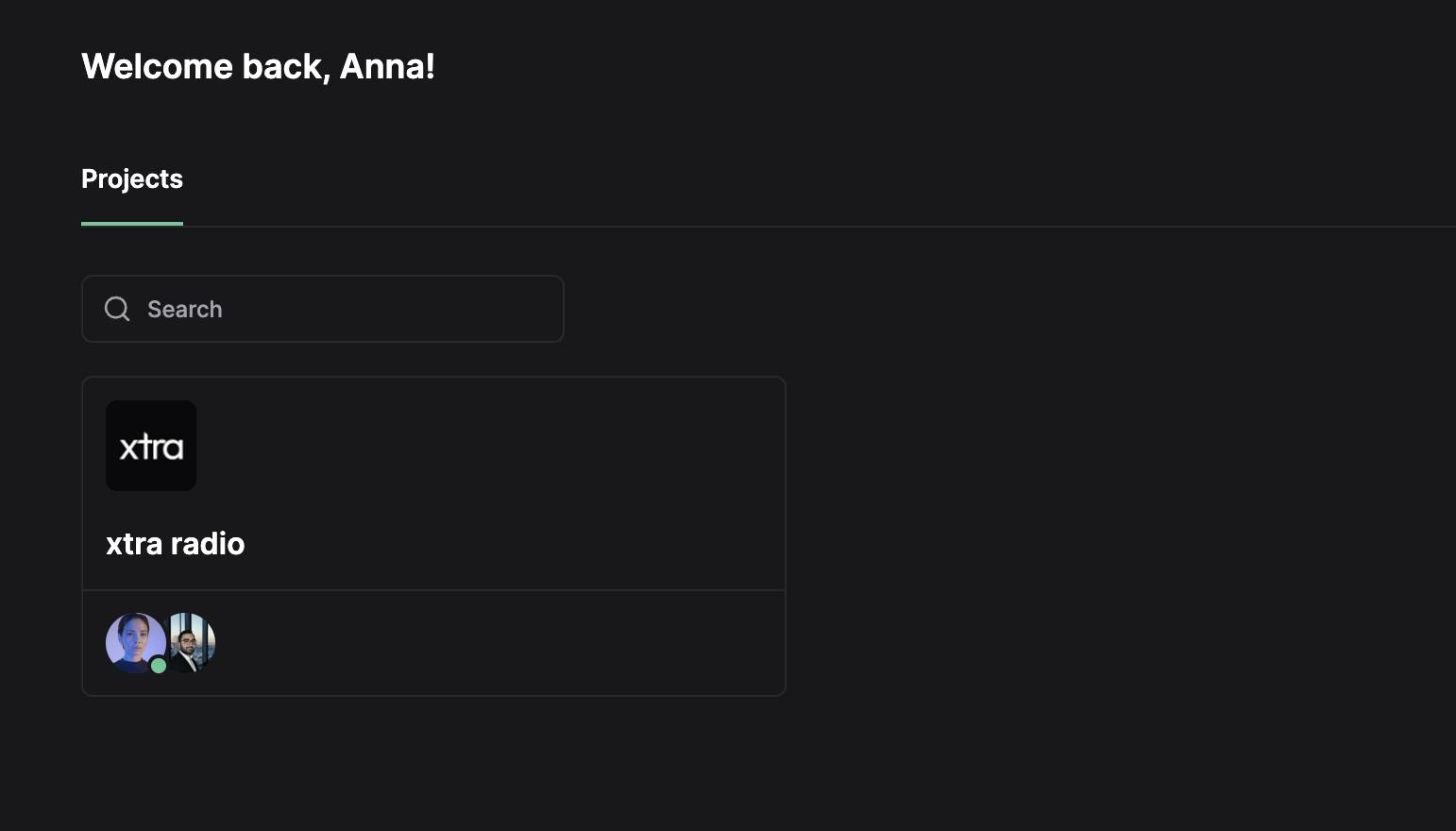
Project Hierarchy
Project
├── Stations (1 or more)
├── Media Library (shared across stations)
├── Team Members
└── Project Settings
Projects group related stations under one organization. A radio network might use one project for all its stations, or separate projects for distinct brands.
Create a Project
- Open the dashboard
- Click Create Project
- Enter a project name and optionally upload an avatar
- Complete the billing setup:
- Enter a billing address
- Add a payment method
After billing setup, the interface redirects to station creation.
Project Settings
Access project settings via Settings in the project sidebar.
| Setting | Description |
|---|---|
| Name | Display name shown in the project selector |
| Avatar | Icon displayed in the sidebar and project list |
| Timezone | Default timezone for scheduling across all stations |
| Default Media Types | Default types assigned to recordings, cartwall, and uploads |
| Maintenance Window | Scheduled downtime period for system updates |
Change Project Settings
- Navigate to Settings in the project sidebar
- Modify the desired fields
- Click Save
Timezone
Each project has a timezone that controls how scheduled times are interpreted and displayed. All planner times are shown in the project timezone.
- The timezone applies to every station in the project
- Schedules, rotations, and maintenance times follow the project timezone
- Changing the timezone shifts how existing scheduled times are displayed
Default Media Types
Projects define default media types that determine how new audio files are categorized on import.
| Source | Default Type |
|---|---|
| Recordings | Type assigned to captured air checks and logger recordings |
| Cartwall Uploads | Type assigned to files uploaded into cartwall slots |
| General Uploads | Type assigned to files added through the media library |
Default media types reduce manual tagging. Files can be reassigned to a different type after import.
Storage Usage
Each project has a storage quota based on the combined plans of its stations. Higher station plans add more storage to the project pool.
- Storage is shared across all stations in the project
- Current usage and the total quota are shown in the project settings
- Upgrading a station plan increases the available quota
See Billing for plan storage allocations.
Maintenance Window
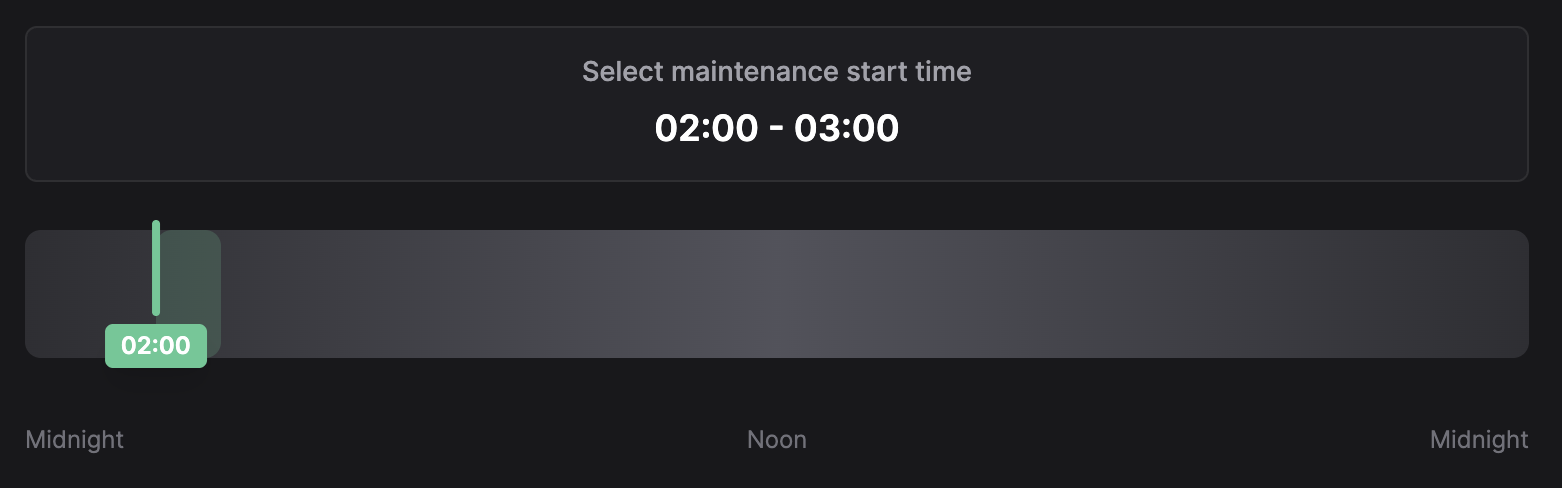
The maintenance window defines a one-hour period when the system may perform automated tasks such as station restarts for updates.
Configuration
| Setting | Description |
|---|---|
| Enabled | Toggle maintenance window on or off |
| Start Time | Hour when the window begins (00:00 - 23:00) |
| Duration | Fixed at 1 hour |
Set the Maintenance Window
- Navigate to Settings in the project sidebar
- Locate the Maintenance Window section
- Enable the toggle
- Drag the timeline slider to select the start hour
Recommendations
- Schedule maintenance during low-listener hours (typically 02:00 - 05:00)
- The window applies to all stations in the project
- Stations may briefly restart during this period for updates
Switch Projects
- Click the project selector in the sidebar header
- Select the target project from the list
The interface loads the selected project context. All navigation operates within this project.
Cancel a Project
Cancelling a project ends all station subscriptions at the end of the current billing period.
- Navigate to Billing in the project sidebar
- Scroll to Cancel Subscription
- Confirm the cancellation
The project and all stations remain active until the billing period ends. This action can be reversed by reactivating before the period ends.
Related
- Onboarding - Set up a new project from scratch
- Stations - Create and configure broadcast endpoints
- Billing - Plans, payment methods, and invoices
- Team Management - Invite users and assign permissions