

Cartwall
The Cartwall provides instant access to sound effects, jingles, and drops during broadcast. Trigger sounds with a single click.
INFO
The Cartwall requires the appropriate plan entitlement.
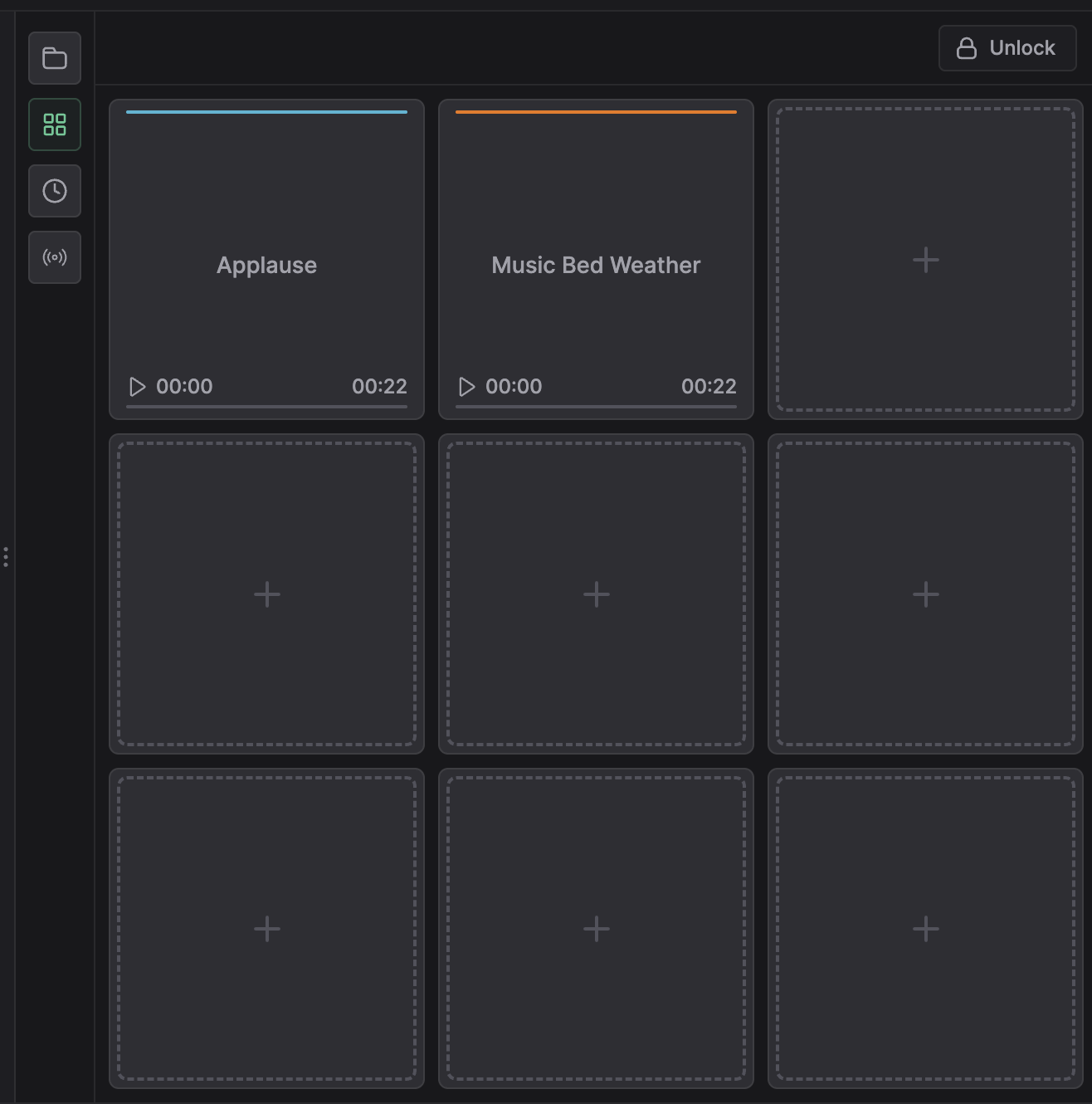
Layout
The Cartwall displays as a grid of cells. Each cell holds one audio item. The grid dimensions (rows and columns) are configured per station.
Cells display the track title and cover thumbnail (if available). Colors are generated automatically based on the item name.
Playback Modes
The Cartwall has two modes:
| Mode | Description |
|---|---|
| ON | Sounds play live on-air through the broadcast |
| PFL | Pre-Fader Listen — sounds play locally in the browser only (not on-air) |
Switch between modes using the toggle above the grid.
Adding Sounds
From Media Library
- Toggle the Lock/Unlock button to unlock the grid
- Open the Media Library tab in Panel B
- Drag an audio file to an empty cell
- Release to assign the sound
From File System
Drag audio files directly from your file system onto an empty cell. This opens the upload interface.
Replace Media
Right-click a populated cell and select Replace Media to swap the audio file via a media library picker.
Playing Sounds
- Click a populated cell
- The sound plays immediately
- The cell shows playback progress
Multiple sounds can play simultaneously. Each triggered sound mixes into the cartwall output channel.
Stopping Sounds
- Click the cell again to stop
- Wait for the sound to finish naturally
Lock/Unlock Mode
Toggle the Lock/Unlock button to switch between playback and editing mode.
Locked (default): Clicks trigger playback.
Unlocked: Clicks do not trigger playback. In this mode:
- Drag cells to swap positions
- Right-click for context menu (edit, replace media, assign channel, delete)
- Remove sounds from cells
Context Menu
Right-click a cell for these options:
| Option | Description |
|---|---|
| Edit | Open media detail page |
| Replace Media | Swap the audio file |
| Channel | Assign to a specific cartwall channel (if multiple channels configured) |
| Delete | Remove the sound from this cell |
Cartwall Mixer Channel
The cartwall has one or more dedicated mixer channels. Adjust volume via the Mixer tab in Panel A.